App Store · Official Guide
Shadowrocket Download
- DeveloperShadow Launch Technology Limited
- App ID932747118
- US storefront: $2.99 · One-time purchase
- For iPhone and iPad
Shadowrocket is available only on the App Store. Check the App Store page for pricing, system requirements and universal purchase eligibility.
Check the storefront region, verify the app using its three identifiers, then complete the purchase and installation. This page covers getting the app; to connect, use a subscription or server details you already have.
Store / Region
Storefront region and app availability
Shadowrocket isn’t available on the mainland China storefront. If you can’t find the app, first check which App Store storefront you’re using; search results alone don’t tell you whether an app is available. Your Apple Account’s country or region determines which storefront you see. Your physical location, device language and regional format are separate from the storefront region tied to your purchase account.
The link at the top of this page opens the US storefront’s product page. If it loads in a browser, that only confirms the page is accessible. Once it opens in the App Store, purchase eligibility depends on the signed-in account and its storefront. If you see a message that the app isn’t available in your country or region, check your account region rather than repeatedly tapping the purchase button.
Check the account you use for purchases
- Open Settings on your device and tap the Apple Account section at the top.
- Go to Media & Purchases, choose View Account, and complete any identity verification requested by the system.
- Check Country/Region to see which storefront the account uses.
- Also confirm that the account shown under Media & Purchases is the one you plan to use, or used previously, to purchase Shadowrocket.
Menu names may vary with the system language and version. The key detail is the purchase account under Media & Purchases. Check the account signed in at the top of Settings separately from your purchase history. The account that completed the purchase is the one that owns it.
Where to find the region settings
To view the region settings, go to Settings → Apple Account → Media & Purchases → View Account → Country/Region. Read the conditions shown by the system before deciding whether to continue. Your balance, active subscriptions, Family Sharing status and payment method may affect whether a change is possible. Follow the current system prompts for specific requirements.
Changing your region isn’t guaranteed to succeed, and it isn’t required just to view an app. If the system says you haven’t met a condition, resolve the account issue it identifies instead of repeatedly changing your details. This guide explains where to check settings on your device; you manage your account, payment confirmation and region settings yourself.
Verify / Three checks
Verify the app: developer, icon and app ID
Use the name to find the app, then check three identifiers to verify it. Confirm them on the product details page rather than relying on the search result title alone.
Shadowrocket
App ID 932747118
Check the full developer name first
The developer should be Shadow Launch Technology Limited. Expand the product page details and read the full name. Don’t rely on the first few words, similar spellings or promotional images. If a search result shows an app with a similar name, open its details and check the developer.
Then compare the official icon
The official icon is a rocket with a blue-purple outline on a white background, matching the icon shown on this page. “Shadowrocket” is sometimes referred to by a Chinese nickname, but a related word in an app’s name doesn’t prove it’s Shadowrocket. Check the icon alongside the developer and app ID; don’t rely on the icon alone.
Finally, confirm the product page ID
The App Store link on this page ends in id932747118, which matches app ID 932747118. Use this number to verify the app when sharing the product page or checking its URL in a browser. Once all three details match, review the price and compatibility before purchasing.
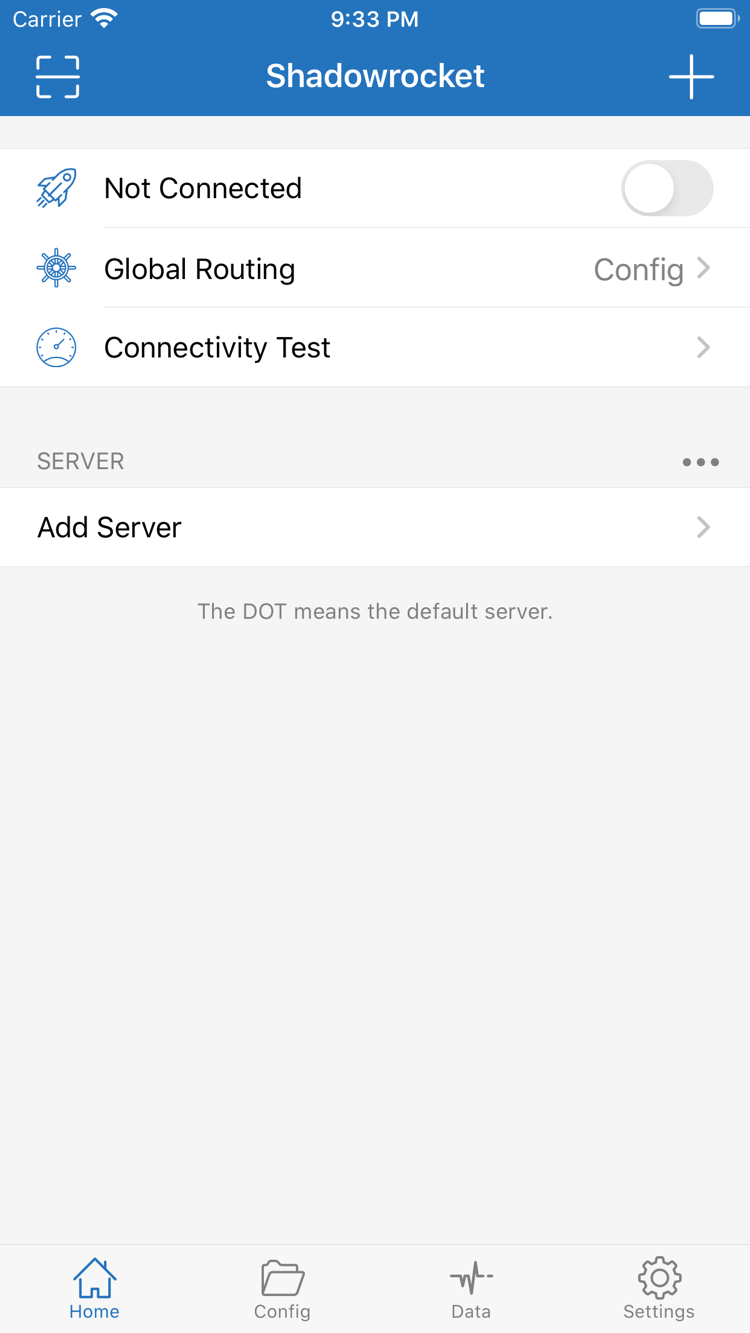
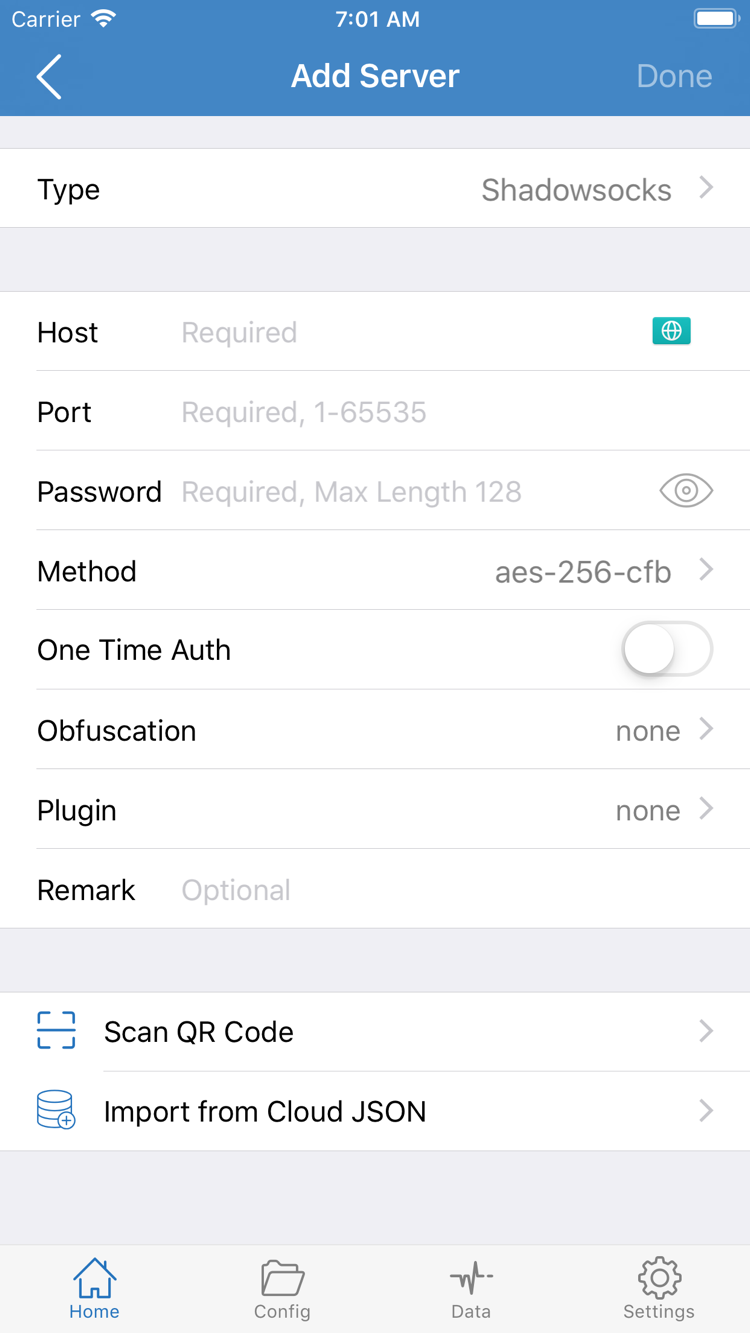
The two images on the right are official screenshots uploaded by the developer to the App Store. They show Home and Add Server. Use them to identify interface elements, not as a substitute for verifying the product page. Server entries shown in the screenshots are part of the images, not connection resources provided by this site. The list in your installed app depends on your own configuration.
App updates may change some layouts, so the current interface might differ from the screenshots. Use the developer name and app ID as your primary checks; interface details may vary. If the name looks similar but the developer or ID doesn’t match, stop the purchase and verify the app again through the App Store link on this page.
iPhone / First launch
Buying and opening Shadowrocket on iPhone
Open the App Store link on this page on your iPhone. Verify the app using its three identifiers, review the compatibility section, then confirm the price. System requirements are listed on the App Store page. If it says your device isn’t compatible, check your device and system requirements; availability on another device doesn’t guarantee compatibility on this one.
Follow the App Store prompts to verify your account and complete payment. Wait for the app icon to show that installation is complete before opening it. If you see a re-download icon, your current account usually has a purchase record for the app. If a price still appears despite a previous purchase, check your purchase history before paying again.
Installing the app and setting up a connection are separate steps
When you first open Home, check that the page loads normally. Installing the app doesn’t provide a working connection by itself. You’ll need to import your own subscription or server details and check the protocol, address, port and required authentication fields. An empty list doesn’t mean the purchase failed, and a server connection error doesn’t mean the app was installed incorrectly.
The first time you start a connection, the system may ask to allow a VPN configuration. This permission prompt lets the system set up the relevant network connection; it isn’t a payment screen for buying the app again. Make sure you initiated the action in Shadowrocket, then follow the system prompts to verify and authorize it. If you previously denied permission, start a connection in the app again to see the prompt.
After granting permission, check the selected server and Global Routing. Config, Proxy and Direct are the three modes; choose one based on your configuration goals. For an initial test, start with a simple, clear setup. Avoid changing routing, DNS and several server settings at once, so it’s easier to trace any problems.
For next steps, see the Shadowrocket setup guide. It starts with importing details you already have, then covers choosing a server, selecting a routing mode, starting a connection and checking the result. This page covers purchasing and installing the app; connection resources aren’t included with the purchase.
iPad / Purchase scope
Installing on iPad and universal purchase
You can use the same Apple Account’s purchase history to install Shadowrocket on both iPhone and iPad, usually with just one purchase. Check the App Store page for universal purchase eligibility, compatibility and system requirements. Before setting up your iPad, confirm that the account under Media & Purchases matches the original purchase account, then check the product page or your purchased items.
If you bought Shadowrocket on your iPhone but the iPad still shows a price, first check the purchase account, purchase history and app ID. The same device passcode, name or household doesn’t mean the devices use the same purchase account. Once you’ve confirmed it’s the same app and the purchase record belongs to the account, use the restore option currently provided by the App Store.
The layout may differ, but the checks are the same
The iPad’s larger screen affects list width and how content is arranged. The visible area may also change between portrait and landscape. Look for the relevant controls under Home, Add Server, Config and Settings; you don’t need to rotate the device to match a screenshot. The English interface labels in this guide help you find the corresponding features, but layouts may vary between devices.
Purchase history and user configuration are separate. Even when two devices share a purchase history, check that your subscriptions, servers and current configuration are all present after installing on the iPad. Don’t assume installation automatically restores all connection details. After importing them, check Global Routing and the selected server, then test the connection.
Compatibility with other Apple devices
The App Store product page lists Mac, Apple TV and Apple Vision under compatibility. Shadowrocket is also obtained from the App Store on these devices. Check the App Store page for availability on your device, system requirements, compatibility and universal purchase eligibility. This guide doesn’t assume that an iPhone purchase or interface will work the same way on other devices.
If you plan to use Shadowrocket on another device, check availability in the App Store on that device first. Confirm that the app can be installed before considering how to move your configuration. A device being listed on the product page doesn’t guarantee that every device you own meets the requirements.
Restore / Purchased
Moving to a new device, reinstalling and restoring purchases
When you get a new device or reinstall the app, restore the purchase first, then restore your own connection details. If the original Apple Account’s purchase history is still available, you can usually download the app again from Purchased without paying again. Availability and device compatibility may affect whether it can be restored; check the App Store page and system prompts.
Reinstall from your purchase history
- On the new device, confirm that Media & Purchases is signed in to the account used for the original purchase.
- Open the App Store, go to your account page and find Purchased. On some system versions, the relevant option is under Apps.
- Search for Shadowrocket, verify the app ID and developer, then use the re-download option in your purchase history.
- Wait for installation to finish, open the app and check your configuration. Then import your own subscription or server details.
If Shadowrocket doesn’t appear in your purchase list, first confirm that you’re viewing the correct account’s purchases, then check whether hidden purchases are enabled. Next, review your purchase history to confirm that the original transaction was for Shadowrocket. Check the purchase record, current storefront region and app availability separately; having installed it on this device before doesn’t prove which account owns the purchase.
If the product page shows a price again, pause before paying. Check whether you’re signed in to a different purchase account, viewing an app with a similar name, or missing the original purchase record. You need to confirm the record before deciding whether to restore an existing purchase or whether the current account has no purchase for the app.
Restoring a purchase doesn’t restore your configuration
App Store purchase history lets you restore access to the app; it doesn’t save all your server settings for you. Before switching devices, make sure you can still access your existing subscription or server details, and keep any configuration you need somewhere safe. Subscription URLs and authentication details are sensitive personal information. Don’t include them in public screenshots, reviews or support requests.
After importing your details on a new device, check that they’re complete and that your subscription is still active before connecting. If the app opens normally but the connection fails, check your server, subscription status and local network. Rebuying the app isn’t a troubleshooting step for connection issues.
Family Sharing eligibility
Family Sharing and restoring a purchase with the same account are different. Check the App Store page and system settings for whether Family Sharing is supported, which members are eligible and what family group or purchase-sharing conditions apply. Check your own Family settings and the product page rather than assuming that joining a family group guarantees you can install the app.
Price / One-time purchase
One-time purchase and what the price covers
Shadowrocket is a paid commercial app with a one-time purchase. The US storefront lists a reference price of $2.99; other storefronts display prices in local currency. Check the App Store page for the current price. Before paying, confirm the amount shown by the storefront tied to your account. Don’t compare amounts in different currencies directly or assume the reference price applies to every storefront.
A one-time purchase covers the app, not a monthly fee for using the client. After purchase, the app is associated with the purchasing account’s history. To get it again on an eligible device, follow the restore-purchase steps first. Purchase eligibility and compatibility are still determined by the App Store page; “one-time purchase” doesn’t automatically extend access to every device or account.
How to tell payment problems from connection problems
If the issue occurs before or after confirming payment in the App Store, check your account, payment method and purchase history first. If Home opens normally but no server is listed, or a server won’t connect, check the imported details, authentication settings and whether the service is active. These issues happen at different stages, so repeating the same steps won’t resolve both.
Buying the app doesn’t extend the validity period of a subscription you already have, and reinstalling the app doesn’t fix server settings automatically. Maintain your configuration using details you already have. If you need to check them, use a trusted private channel and don’t post a complete subscription URL publicly.
Updates are handled through the App Store
Future app updates are delivered through the App Store. Check the App Store settings on your device for automatic updates, or look for available updates on your account page. Check the App Store page for update details, compatibility changes and system requirements. This guide doesn’t list version numbers or release dates, which could become outdated.
Before updating, make sure you can restore any important custom configuration. If the layout changes after an update, use interface labels such as Home, Config and Settings to find features, then check that your current configuration still meets your needs. For more detail, see Features & Settings and the Glossary.
Purchase / Questions
Purchase and installation FAQs
Troubleshoot based on where the issue occurs: storefront availability, payment, installation, configuration or connection.
Why can’t I find Shadowrocket in the App Store?
Shadowrocket isn’t available on the mainland China storefront. Your Apple Account’s country or region determines which store you see. Check the account region under Media & Purchases, then check availability on the product page. Changing your device’s language or region won’t change the storefront.
Why can’t I download Shadowrocket even though the product page opens?
Note the App Store message, then check the storefront region, device compatibility, payment status, available storage and network connection. Opening the webpage doesn’t mean your current account can make a purchase. Check the App Store page for system requirements and compatibility.
Do I have to pay again when I get a new device or reinstall the app?
On the App Store, sign in with the Apple Account used for the original purchase, find Shadowrocket in your account’s purchase history and download it again. You usually won’t need to pay again. If a price appears, check the account under Media & Purchases and confirm your purchase history before paying.
Can I install Shadowrocket on my iPad if I bought it on my iPhone?
You can use the same Apple Account’s purchase history to install Shadowrocket on both iPhone and iPad. Check the App Store page for universal purchase eligibility and system requirements. After installing it on your iPad, you’ll still need to check and import your own subscription or server details.
Can I install Shadowrocket on Mac, Apple TV or Apple Vision?
The App Store product page lists Mac, Apple TV and Apple Vision under compatibility. Check availability in the App Store on your device. System requirements, compatibility and universal purchase eligibility are listed on the App Store page.
The app opens in English. Which items should I check first?
Start with Home, Add Server, Global Routing and Config. Home shows connection and server information; Add Server is for adding your own server details; Global Routing lets you choose a routing mode. Official screenshots show the English interface, so this guide keeps interface labels unchanged for easy reference.